Appearance
Customising Notes
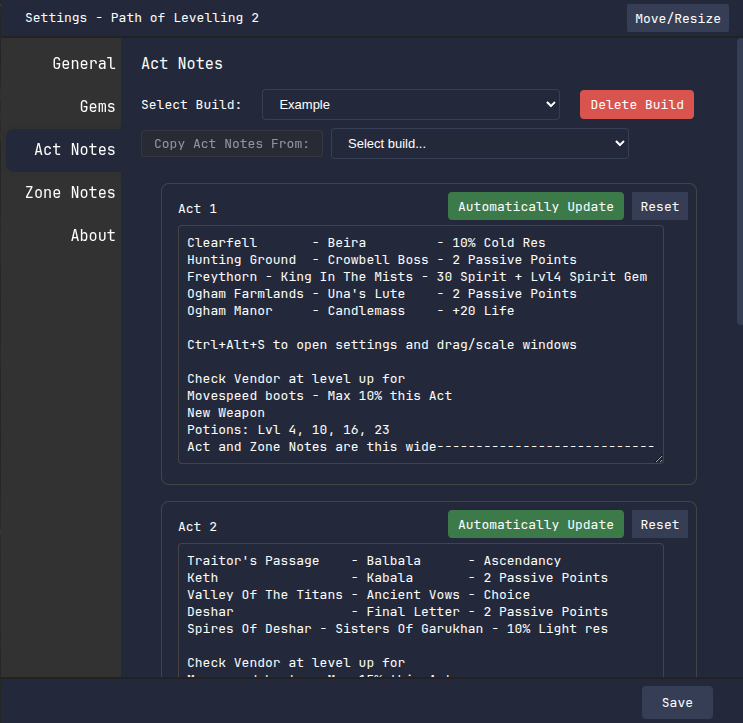
Hit Ctrl+Alt+S to open the settings and click Act Notes on the left - you should see something like this:
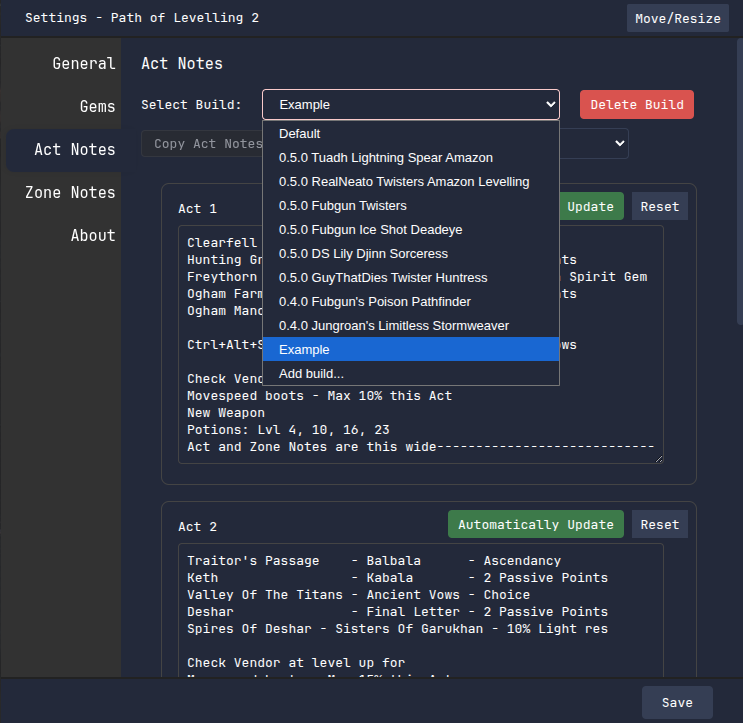
Up the top is a dropdown that lets you select from a few built-in builds, or choose 'Add Build...' down the bottom to create your own:
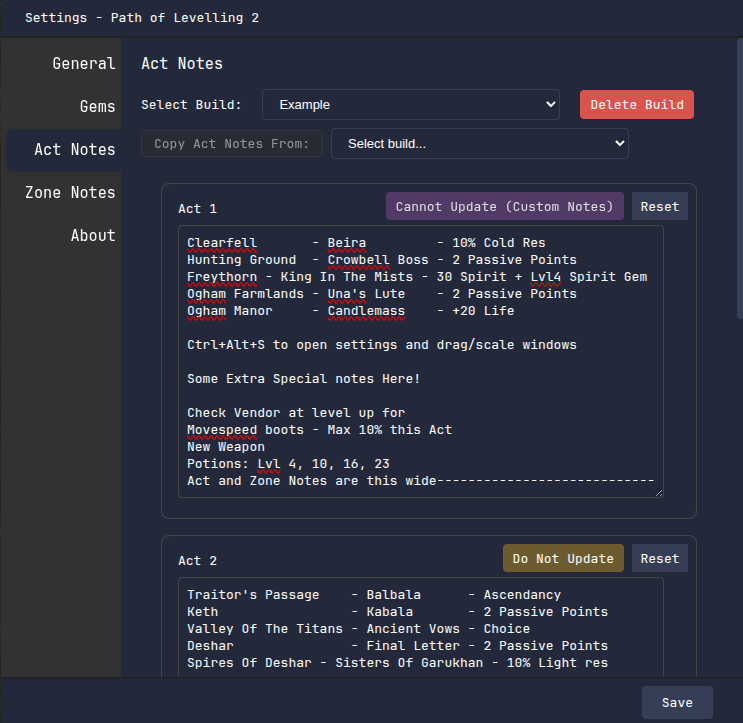
In each text box for each Act you can write whatever you want to show during that act. If you're following a build guide, creators will usually have tops and tricks that are relevant to each act, this is a great place to put them!
Any custom notes will prevent automatic updates for that act, so that your notes are never overwritten. If you don't want to customise a note and you also don't want automatic updates, you can also click the 'Automatically Update' button to switch that act to 'Do Not Update':
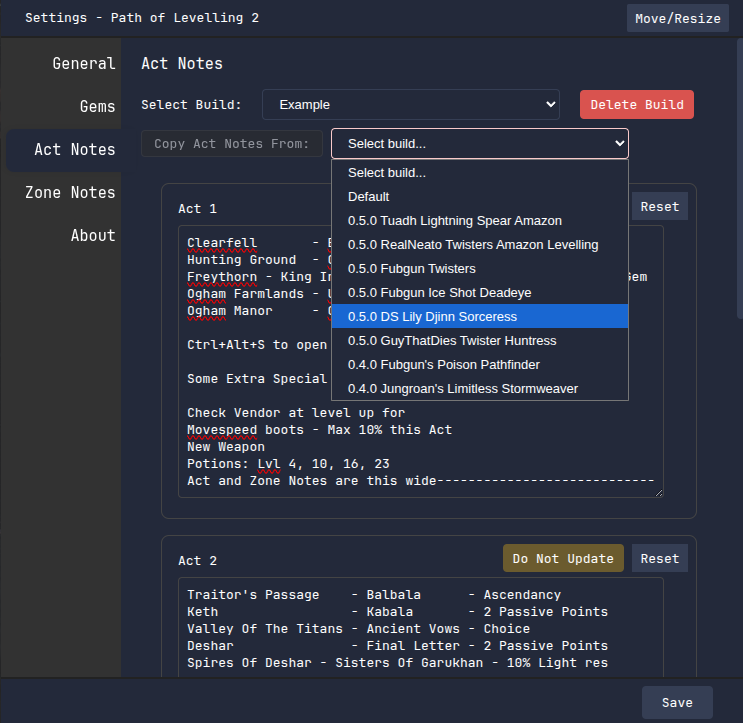
If you already have some great notes on another build, you can also copy those notes into this build by selecting a build from the second dropdown at the top of the page then click the 'Copy Act Notes From:' button which will light up after you select a build:
All of these features are also available on the Zone Notes screen!
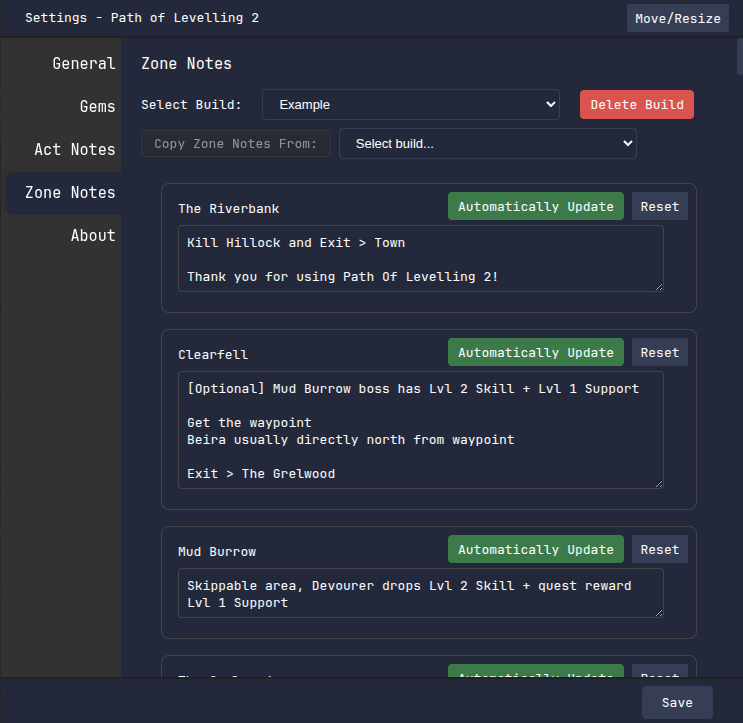
On every guild you can customise notes for every act and zone, and the Act and Zone Notes window will automatically switch between acts and zones as you progress through the game!